Free VPN to Change Location: How to Choose and Use One
Learn how a free VPN can change your online location, what to check before choosing one, and how to avoid common limitations.
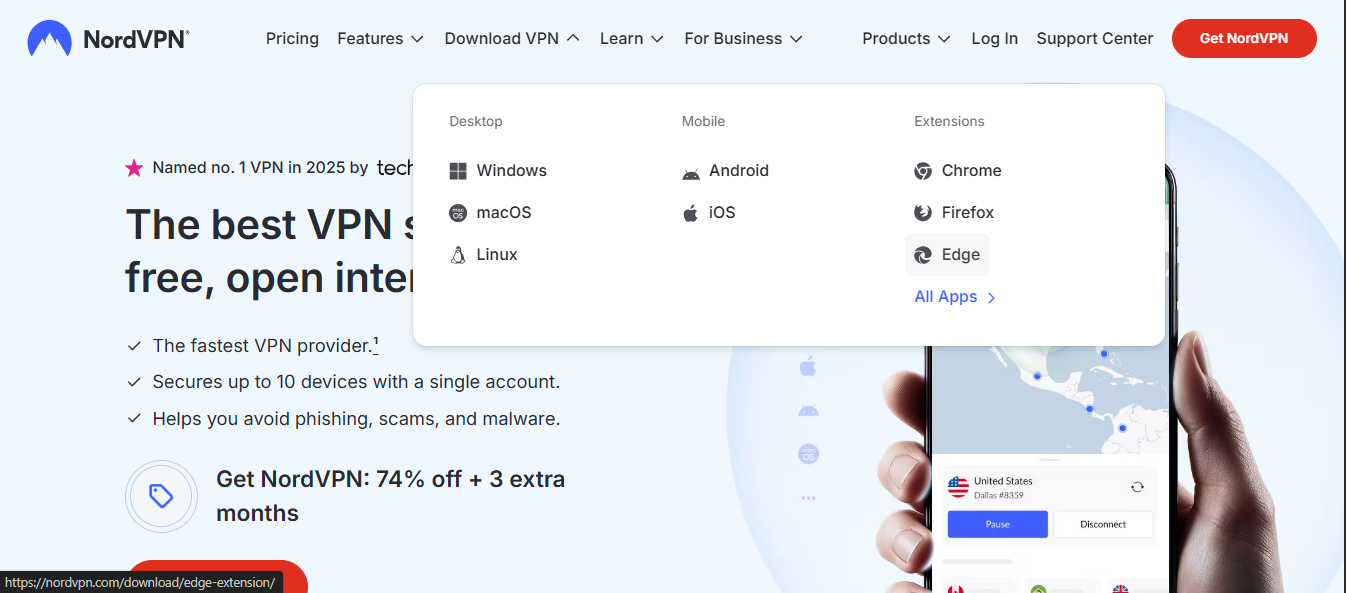
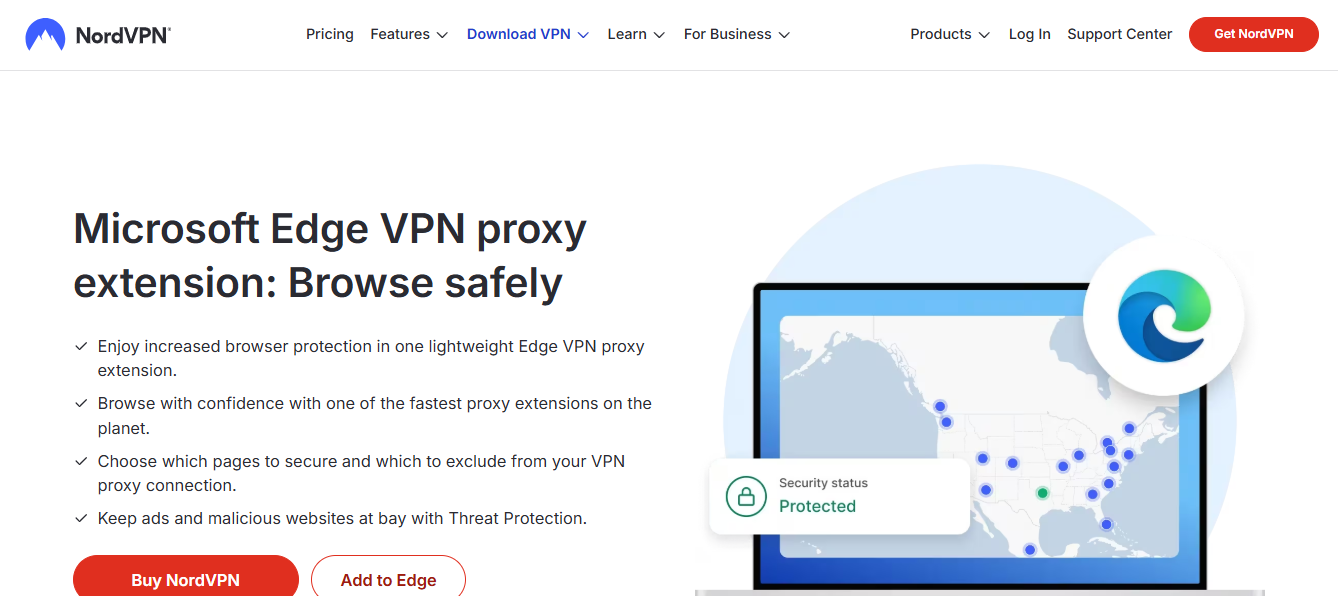
If you want a free VPN to change location, choose a reputable service that lets you select a server location in its free plan, install its official app, and connect to that server. Your IP-based location will usually appear to websites as the location of the VPN server. Before you start, check which locations are available for free and review the provider’s privacy policy and limitations.
Editor's pick: NordVPN — fast, secure VPN — Strong encryption, a no-logs policy and apps for every device. 30-day money-back guarantee. Get NordVPN →
Free VPN selection checklist
| Check | What to look for | Why it matters | Trade-off |
|---|---|---|---|
| Server locations | Locations listed before signup | Shows whether a suitable location is available | Free plans may offer few choices |
| Data allowance | Clear monthly or daily limit | Helps estimate whether it fits your use | Streaming can use data quickly |
| Speed | Realistic speed information | Affects browsing and video quality | Free servers can be busy |
| Privacy policy | Clear data collection and retention terms | Helps you understand what the provider records | Read the policy, not just the summary |
| Logging | Explicit explanation of activity logs | Indicates whether browsing activity is recorded | Policies can differ by plan |
| Security | Current, clearly described protections | Helps protect traffic on the VPN connection | A VPN does not make every activity safe |
| Device support | Apps for the devices you use | Makes setup and switching easier | Free plans may limit simultaneous use |
| Connection limits | Clear session or usage restrictions | Avoids surprises during use | Some features may require a paid plan |
Compiled November 2026; check the provider's site for current details.
| VPN | Obfuscation | From / month | Plan | Free plan | Refund | Alipay | UnionPay | Crypto | Website opens in China | Trustpilot | |
|---|---|---|---|---|---|---|---|---|---|---|---|
 Proton VPN | Turn on manually Stealth, free plan too | $2.99/mo | 12 months: $35.88 | Yes | 30 days | ✗ | ✗ | ✗ | ✓ | ✗ Blocked | 2.1/5 (1,040 reviews) |
 Windscribe | Turn on manually Stealth / WStunnel | $5.75/mo | 12 months: $69 | Yes | See site | ✗ | ✗ | ✗ | ✓ | ✗ Blocked | 4.7/5 (13,355 reviews) |
 ZoogVPN | Turn on manually Shadow | $2.49/mo | 27 months: $59.99 | Yes | 7 days | ✓ | ✓ | ✓ | ✓ | Official site blocked; our special link opens (4.4 s) | 4.2/5 (195 reviews) |
 NordVPN | Turn on manually Obfuscated Servers / NordWhisper | $3.49/mo | 27 months: $94.23 | No | 30 days | ? | ✗ | ✓ | ✓ | ✗ Blocked | 4.2/5 (51,628 reviews) |
 ExpressVPN | ✓ On by default all servers | $3.00/mo | 28 months: $84 | No | 30 days | ✗ | ✗ | ✓ | ✗ | ✗ Blocked | 4.4/5 (29,706 reviews) |
 Surfshark | ✓ On by default Camouflage, with OpenVPN | See site | See site | No | 30 days | ✗ | ✗ | ✗ | ✓ | ✗ Blocked | 4.3/5 (31,823 reviews) |
 Astrill VPN | Turn on manually StealthVPN / OpenWeb | $12.50/mo | 24 months: $300 | No | See site | ✗ | ✗ | ✗ | ✓ | ✗ Blocked | 1.3/5 (110 reviews) |
 Private Internet Access | Turn on manually Shadowsocks, OpenVPN only | $2.03/mo | 40 months: $81.2 | No | 30 days | ✗ | ✗ | ✗ | ✗ | ✗ Blocked | 4.2/5 (11,033 reviews) |
 CyberGhost | Turn on manually selected servers | $2.19/mo | 28 months: $61.32 | No | 45 days | ✗ | ✗ | ✗ | ✓ | ✗ Blocked | 4.0/5 (24,178 reviews) |
 PureVPN | Turn on manually switch to OpenVPN | $1.69/mo | 60 months: $101.55 | No | 31 days | ? | ? | ✗ | ✓ | ✗ Blocked | 4.4/5 (17,994 reviews) |
 AdGuard VPN | ✓ On by default TrustTunnel | $2.99/mo | 24 months: $71.76 | Yes | 30 days | ✓ | ✗ | ✓ | ✓ | Official site blocked; our special link opens (3.7 s) | 4.3/5 (290 reviews) |
 Mullvad | Turn on manually QUIC / Shadowsocks / LWO | $5.61/mo | €5/mo | No | 14 days | ✗ | ✗ | ✗ | ✓ | ✗ Blocked | 3.2/5 (192 reviews) |
 StrongVPN | Turn on manually Scramble, OpenVPN TCP | See site | See site | No | 30 days | ✓ | ✗ | ✗ | ✗ | ✗ Blocked | 4.4/5 (2,695 reviews) |
 LightXtreme 闪连 | Not listed | $7.08/mo | 12 months: $84.99 | Yes | 30 days | ✓ | ✓ | ✓ | ✓ | ✓ Yes (3.5 s) | No page |
Prices checked 2026-11-10 on each vendor's pricing page (cheapest long plan, USD). Check the vendor's checkout for the final price.
Obfuscation checked 2026-11-14 on each vendor's site and help center: "on by default" = nothing to set; "turn on manually" = switch protocol or mode in settings; "not listed" = the vendor describes no obfuscation.
Payment methods checked 2026-11-10 on each vendor's payment pages: all 14 take cards and PayPal; ✗ = not listed, ? = the vendor's own pages disagree.
China access: whether the official website opens from mainland China networks (tests the website only, not the VPN connection). Last checked 2026-11-18 01:02 Beijing time.
Trustpilot score and review count checked 2026-11-10.
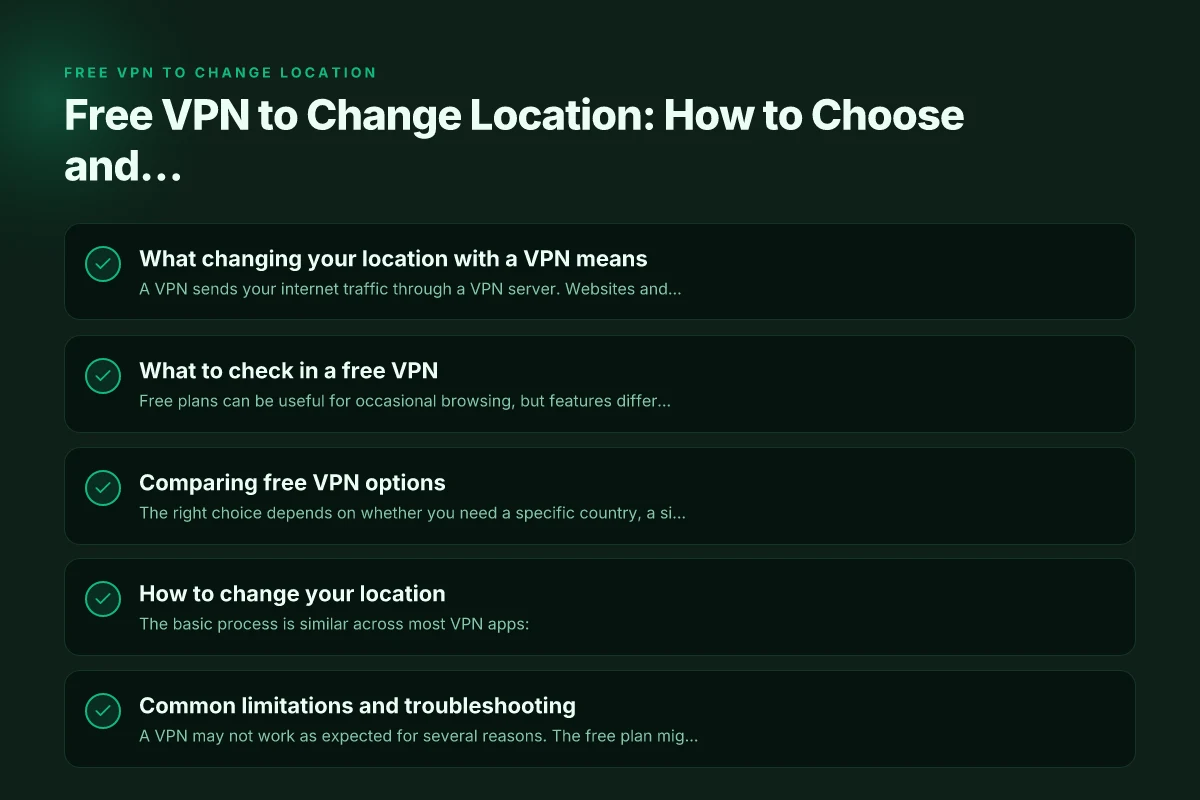
What changing your location with a VPN means
A VPN sends your internet traffic through a VPN server. Websites and apps may then see the server’s IP address rather than your usual public IP address, which can make it appear that you are browsing from another region.
This changes your apparent IP-based location, not your physical location. A VPN generally does not change GPS data, your device’s location settings, or information an app already has about you. Websites may also use cookies, account details, browser settings, or other signals to estimate your location.
A VPN can help protect traffic on networks you don’t trust, but it does not make you fully anonymous or guarantee that every service will accept the location it shows.
What to check in a free VPN
Free plans can be useful for occasional browsing, but features differ considerably. Check the details before connecting: NordVPN Download Windows 11: How to Install and Get Started
- Manual server selection: Confirm that you can choose a location rather than being assigned one automatically.
- Available countries: Free plans may offer fewer locations than paid plans.
- Data and speed limits: Look for restrictions that could affect video, downloads, or frequent use.
- Privacy practices: Read what data the provider collects, how it is used, and whether the policy explains logging.
- Security and reputation: Download from the provider’s official website or your device’s trusted app store. Avoid apps with unclear ownership or promises that sound unrealistic.
- Device support: Make sure the app works on your phone, computer, or browser as needed.
Some services advertise unlimited traffic or several free locations. Treat those as provider claims, and check the current plan terms and privacy information before relying on them.
Comparing free VPN options
The right choice depends on whether you need a specific country, a simple connection, or regular use. The search results include one named service and informal recommendations, but they do not provide enough independently verified detail to rank providers confidently.
| Option mentioned in search results | What the listing or discussion says | What to verify |
|---|---|---|
| Planet VPN | Its site advertises a free plan with six locations and unlimited traffic | Current locations, terms, privacy policy, and app availability |
| Riseup VPN | Mentioned in a Reddit discussion as a free option | Whether it offers the location selection and device support you need |
| Ignite VPN | A Reddit user describes its free version as offering unlimited VPN time | Current features, privacy practices, and location choices |
These descriptions are not a guarantee of performance or suitability. Plans and app features can change, so verify them directly with the provider. Be cautious about treating social posts or forum comments as security reviews.
Comparing free VPN options Checkpoint VPN: What It Does and How to Choose a Client
| Option | Location choice | Data allowance | Device support | Privacy information | Best suited for |
|---|---|---|---|---|---|
| Proton VPN Free | Check current free locations | Check current plan terms | Check supported devices | Review current privacy policy | Users prioritizing a free plan |
| Windscribe Free | Check current free locations | Check current plan terms | Check supported devices | Review current privacy policy | Users comparing location choices |
| PrivadoVPN Free | Check current free locations | Check current plan terms | Check supported devices | Review current privacy policy | Users comparing free data limits |
| TunnelBear Free | Check current free locations | Check current plan terms | Check supported devices | Review current privacy policy | Occasional, light use |
| hide.me Free | Check current free locations | Check current plan terms | Check supported devices | Review current privacy policy | Users comparing app features |
| Hotspot Shield Basic | Check current free locations | Check current plan terms | Check supported devices | Review current privacy policy | Users comparing free access options |
Compiled November 2026; check the provider's site for current details.
How to change your location
The basic process is similar across most VPN apps:
- Choose a VPN provider and read its free-plan and privacy details.
- Download the app from the provider’s official site or a trusted app store.
- Open the app and review the permissions it requests.
- Select a server in the country or region you want, if manual selection is included.
- Tap Connect and approve the VPN connection prompt on your device.
- Check your apparent IP location with a reputable IP-checking website.
- If the location does not appear to change, disconnect and reconnect, or try another available server.
For a browser-only VPN, check whether it protects only browser traffic. A browser extension may not route traffic from other apps through the VPN.
Common limitations and troubleshooting
A VPN may not work as expected for several reasons. The free plan might not include your preferred country, or a website may recognize and block the VPN server’s IP address. Some services also verify location through GPS, account information, payment details, or device settings rather than relying only on IP address. Fortinet VPN: What It Does, How to Get Started, and What to Know
If your IP-based location still appears unchanged:
- Confirm that the VPN says it is connected.
- Check that you selected the intended server location.
- Turn off other VPN or proxy apps that could conflict.
- Reconnect or choose another free server.
- Review the app’s settings for features that may affect traffic routing.
Do not use a VPN to misrepresent your location where doing so would violate a service’s rules or local requirements. If you need consistent access to a particular region, a free plan may not provide the server choice or reliability you need.
Troubleshooting a VPN location change
| What you notice | Possible cause | What to try | Check whether it worked |
|---|---|---|---|
| Location appears unchanged | VPN is not connected | Connect to a server in the desired location | Check the displayed IP location |
| Desired location is missing | Free plan has limited servers | Review the free server list | Confirm the location is available |
| Websites still show your old region | Site uses account or browser data | Sign out or try a private window | Reload the site and check its region |
| Connection is slow | Busy server or long route | Try another available server | Compare loading times |
| VPN keeps disconnecting | Network or app issue | Reconnect and update the app | Keep the connection open during use |
| A website blocks access | Site detects or restricts VPN traffic | Try another server or contact the site | Follow the site’s access rules |
| Location differs across services | Services use different location signals | Check the VPN connection and service settings | Compare the services’ displayed regions |
Compiled November 2026; check the provider's site for current details. VPN Free Extension Edge: How to Choose One for Microsoft Edge
Recommendation
For occasional browsing, a free VPN can be a practical way to change your apparent IP-based location, provided its free plan lets you choose a suitable server and its privacy practices are clear. Compare the current terms, locations, and data limits before installing. Remember that a VPN changes the location associated with your internet connection, not your GPS position, and no free VPN can guarantee access to every website.